MCP Integration
Connect BIOS to AI coding assistants via Model Context Protocol (MCP).
BIOS is available as an MCP (Model Context Protocol) server. Connect it directly to AI coding assistants like Cursor, Claude Desktop, Windsurf, or any MCP-compatible client — and run scientific deep research from your editor.
Prerequisites
You'll need a BIOS API key. If you don't have one yet:
- Go to Account Settings → API Keys
- Click Create API Key
- Copy the key — it starts with
bio_sk_
See the BIOS API docs for detailed instructions.
Claude Desktop (Recommended)
In Claude Desktop, connect BIOS from the UI:
- Open Settings
- Open Connectors
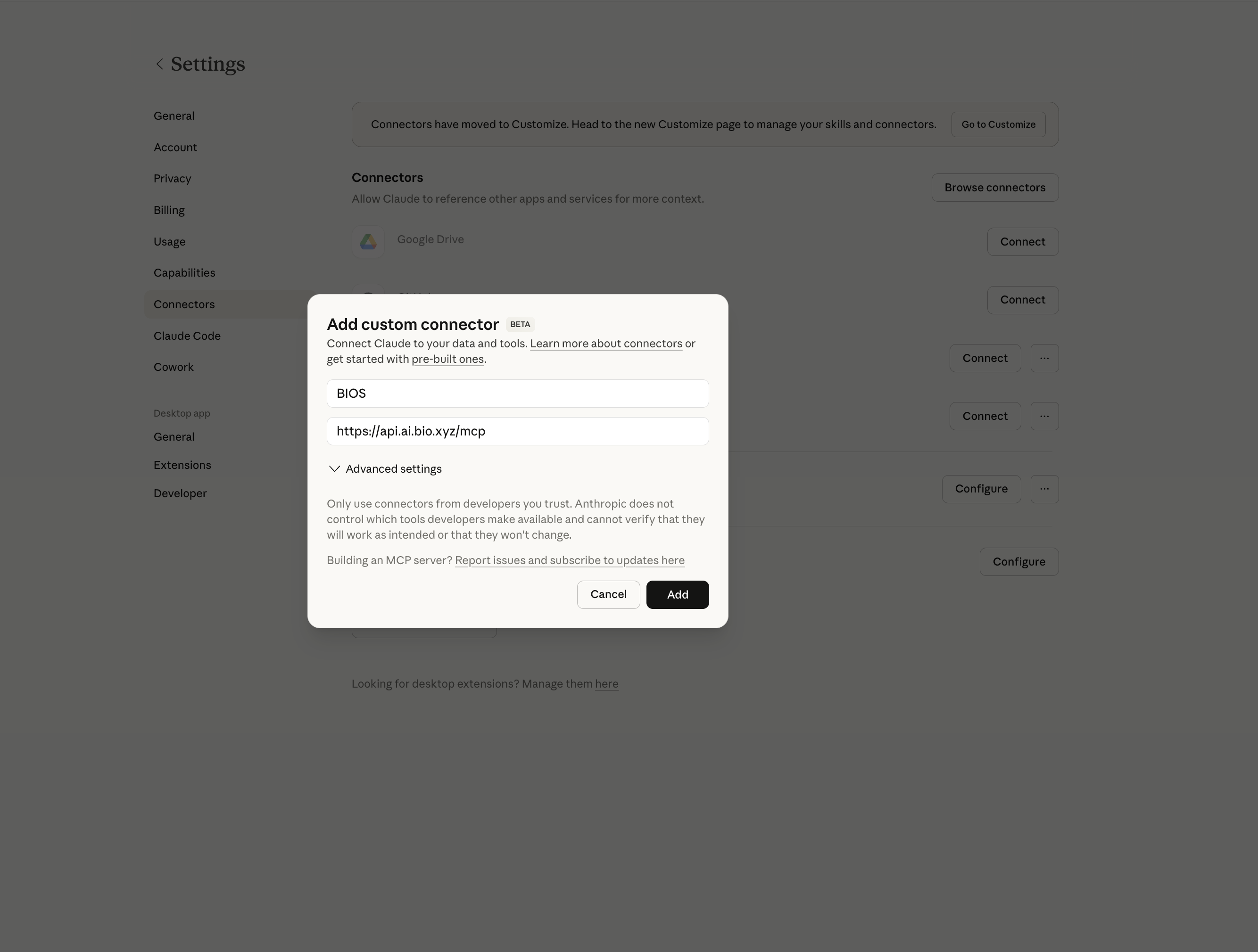
- Click Add custom connector
- Enter these values:
| Field | Value |
|---|---|
| Name | BIOS |
| URL | https://api.ai.bio.xyz/mcp |
- Click Add
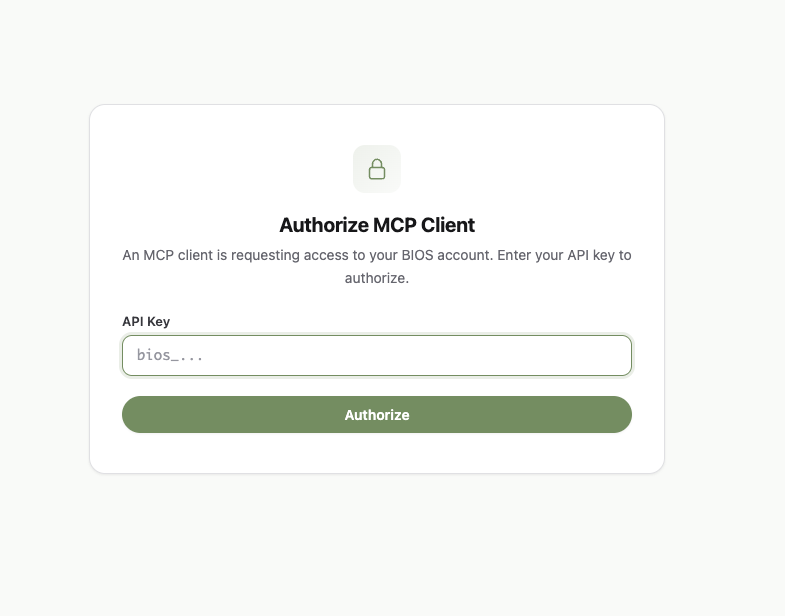
Claude will open a browser page for MCP authorization. Enter your BIOS API key and click Authorize.
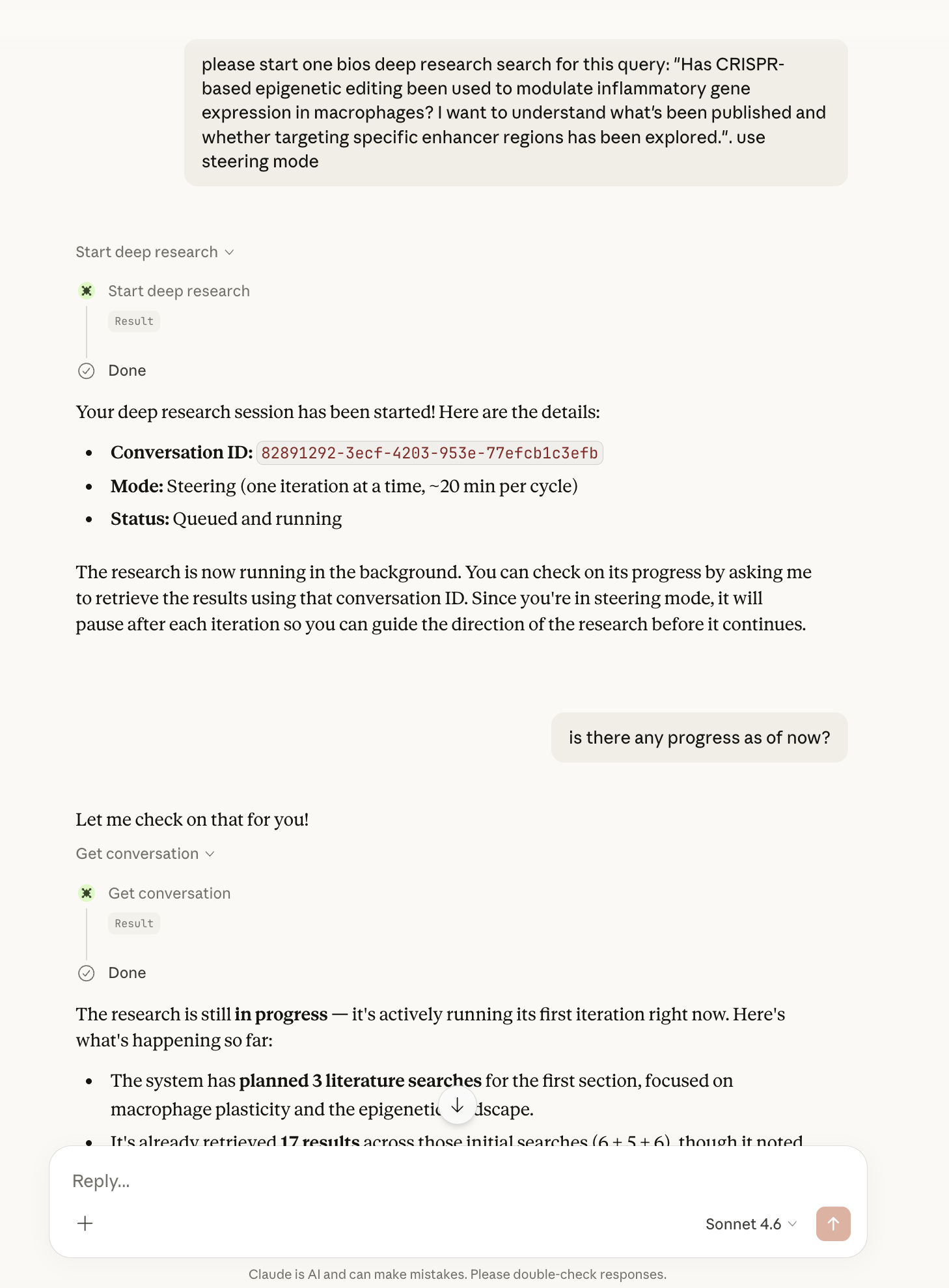
After authorization, return to Claude Desktop and start using BIOS tools.
Legacy Claude Desktop Config (claude_desktop_config.json)
For older Claude Desktop setups that still use local config files, use mcp-remote:
{
  "mcpServers": {
    "BIOS": {
      "command": "npx",
      "args": ["-y", "mcp-remote", "https://api.ai.bio.xyz/mcp"]
    }
  }
}
Authentication Model (Current)
BIOS MCP uses OAuth + API-key consent:
- MCP client connects to
https://api.ai.bio.xyz/mcp - Client discovers OAuth metadata from BIOS (
/.well-known/...) - Browser consent page opens (
/authorize/consent) - You enter BIOS API key once
- Client uses OAuth tokens for subsequent calls
Other MCP Clients
Cursor IDE
Add BIOS MCP server URL in .cursor/mcp.json:
{
  "mcpServers": {
    "BIOS": {
      "url": "https://api.ai.bio.xyz/mcp"
    }
  }
}
Windsurf
Add BIOS MCP server URL in Windsurf MCP config:
{
  "mcpServers": {
    "BIOS": {
      "serverUrl": "https://api.ai.bio.xyz/mcp"
    }
  }
}
For any MCP-compatible client, use these connection details:
| Setting | Value |
|---|---|
| Server URL | https://api.ai.bio.xyz/mcp |
| Protocol | MCP streamable HTTP |
| OAuth Metadata | https://api.ai.bio.xyz/.well-known/oauth-authorization-server |
| Protected Resource Metadata | https://api.ai.bio.xyz/.well-known/oauth-protected-resource/mcp |
| Consent Page | https://api.ai.bio.xyz/authorize/consent |
Available Tools
BIOS MCP currently exposes 15 tools:
| Tool | Description |
|---|---|
list_conversations | List past deep research sessions |
get_conversation | Get full deep research conversation detail |
start_deep_research | Start or continue a deep research session |
create_file_upload | Create presigned upload URL for a file |
complete_file_upload | Finalize and validate uploaded file |
list_files | List uploaded files |
get_file | Get uploaded file metadata |
delete_file | Delete uploaded file |
query_literature | Run standalone literature search |
get_literature_job | Poll deep-mode literature job |
run_data_analysis | Run standalone data analysis task |
get_data_analysis_task | Poll data analysis task |
get_artifact_download_url | Get presigned download URL for task/conversation artifact |
list_literature_tasks | List historical literature tasks |
list_analysis_tasks | List historical analysis tasks |
Workflow
Here's how to use BIOS through MCP in your AI assistant:
1. Start a research session
Ask your AI assistant something like:
"Use BIOS to research what compounds show senolytic activity in human clinical trials"
The assistant will call start_deep_research and receive a conversation ID immediately while research runs in the background.
2. Poll for results
The assistant will call get_conversation to check progress. The status field shows in_progress while research is running and completed when done.
3. Continue or refine
Ask a follow-up question to continue the same session:
"Now focus on dasatinib and quercetin combination therapy and their clinical outcomes"
The assistant will call start_deep_research with the same conversationId and your new message.
4. Run standalone subagent tasks
For standalone work, ask for:
query_literature/get_literature_jobrun_data_analysis/get_data_analysis_tasklist_literature_tasks/list_analysis_tasks
Research Modes
You can specify a research mode when starting a session:
| Mode | Iterations | Duration | Best For |
|---|---|---|---|
steering | 1 per call | ~20 min | Full control, step-by-step exploration |
semi-autonomous | Up to 5 | ~60 min | Balanced — runs with review pauses |
fully-autonomous | Up to 20 | ~8 hrs | Deep, comprehensive research |
Troubleshooting
"Tool not found" or no BIOS tools available
- Verify your MCP config file is saved and the JSON is valid
- Restart your AI assistant after editing the config
- Complete the OAuth consent flow in the browser prompt
"Authentication failed"
- Reconnect and complete OAuth consent again
- Make sure your API key is active on the API Keys page
- Confirm
https://api.ai.bio.xyzis reachable from your network
Research seems stuck at "in_progress"
- Deep research can take 20 minutes to 8+ hours depending on the mode
- Ask your assistant to poll
get_conversationagain to check the latest status