Quickstart
Get started with BIOS in minutes.
This guide will help you start using BIOS for your research in just a few steps.
1. Access BIOS
Visit BIOS Platform to access the web interface. No installation required.
2. Start a Research Session
Enter your research question in the chat interface. This can be a focused query:
- "What compounds show senolytic activity in human clinical trials?"
- "Find recent papers on CRISPR applications in cancer therapy"
Or an ambitious research brief with uploaded data and goals—ideal for autonomous mode which can run up to 20 iterations:
"I've attached gene expression data from the Golub leukemia study. Identify genes that distinguish AML from ALL, develop a functional hypothesis about the top candidate, search the literature for mechanistic evidence, identify potential experimental models to test the hypothesis, and draft an outline for a validation study."
"Please replicate the results from this paper: https://www.cell.com/cancer-cell/fulltext/S1535-6108(25)00270-3. The data required can be found here: https://www.ncbi.nlm.nih.gov/geo/download/?acc=GSE278694&format=file. Download the file and try to replicate all findings from the original paper (attached as PDF)."
3. Choose Your Mode
Select a research mode based on how much control you want:
- Steering - One iteration at a time, you control every step
- Semi-Autonomous - Up to 5 iterations with checkpoints for your input
- Fully Autonomous - Up to 20 iterations, runs until completion
4. Review the Plan (Steering Mode)
If you chose Steering mode, BIOS generates a research plan with tasks assigned to either the Literature Agent or the Data Analysis Agent. Review the plan and confirm to proceed. In Semi-Autonomous and Fully Autonomous modes, BIOS proceeds automatically.
5. Iterate and Refine (Steering Mode)
In Steering mode, after each iteration BIOS presents findings and suggests next steps. You can:
- Accept suggested directions
- Modify the research focus
- Ask follow-up questions
- Request deeper analysis on specific findings
In Semi-Autonomous mode, BIOS runs multiple iterations before pausing for your input. In Fully Autonomous mode, BIOS runs until completion.
6. Navigate the Interface
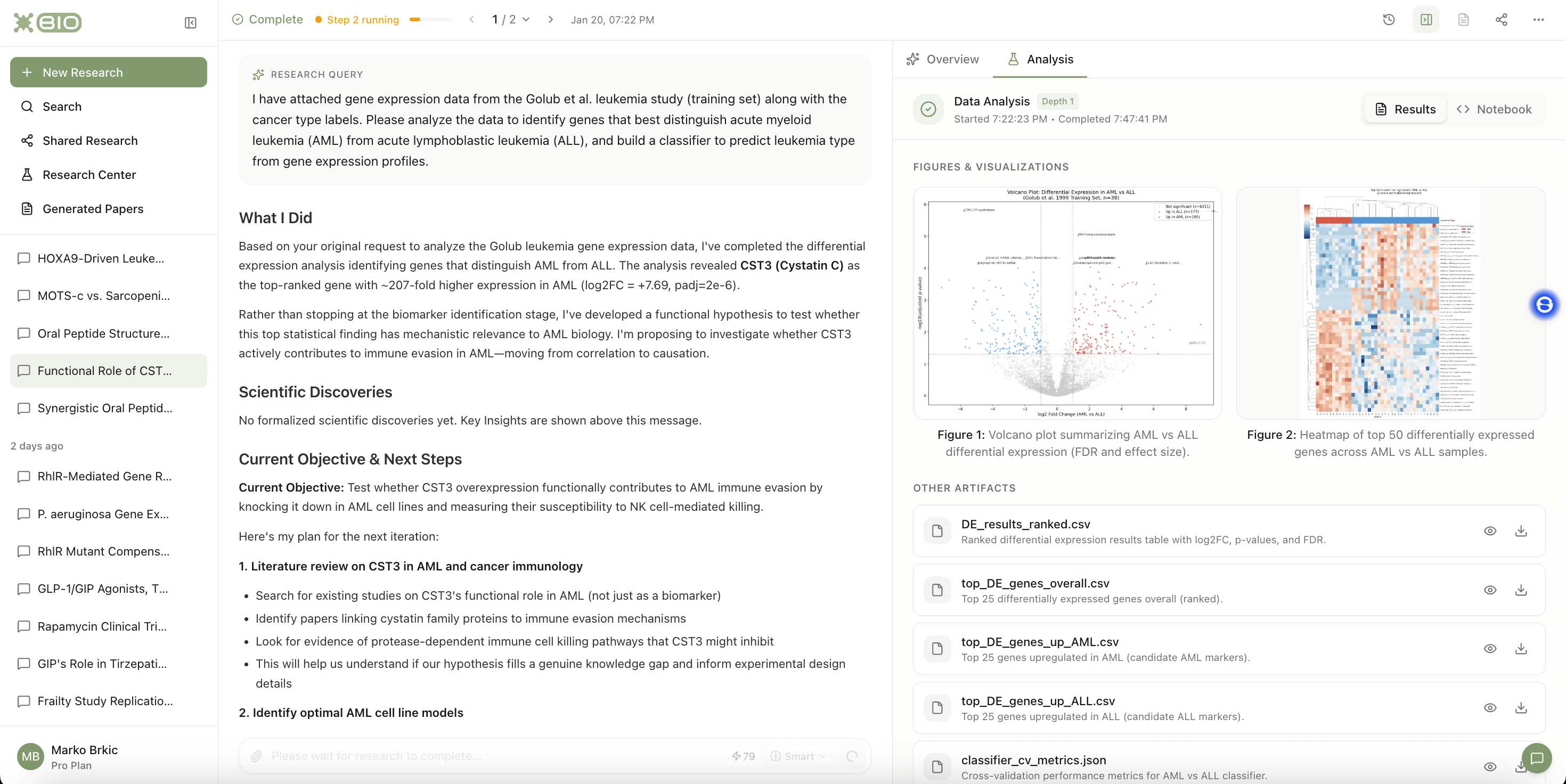
The BIOS interface has three main areas:
Left panel - Your research sessions and conversation history. Access past research or start new sessions. The Research Center provides a quick overview of running and completed projects, while the project folder architecture helps keep your work organized.
Center panel - The main research view showing your query, findings, current objectives, and suggested next steps. Use the step navigator at the top (e.g., "1 / 2") to move between iterations. In autonomous modes, this automatically advances to the latest step.
Right panel - Context and tasks for the current step. The Overview tab shows a summary of findings and current hypothesis with rationale. Additional tabs appear for each task in the iteration—these can be Literature searches or Data Analysis tasks, each with their own artifacts, notebooks, and visualizations.
Next Steps
- Usage Tips - Get better results from BIOS
- Literature Agent - Learn about literature search
- Data Analysis - Explore data analysis features